Symphony Business Account Registration: SAM.gov Entity Linking, MFA Enrollment, and Activation Paths
Purpose: This guide walks commercial contractors and offerors through registering an individual Symphony business account, validating corporate SAM.gov details, enrolling in multi-factor authentication (MFA), and completing mandatory administrative activation.
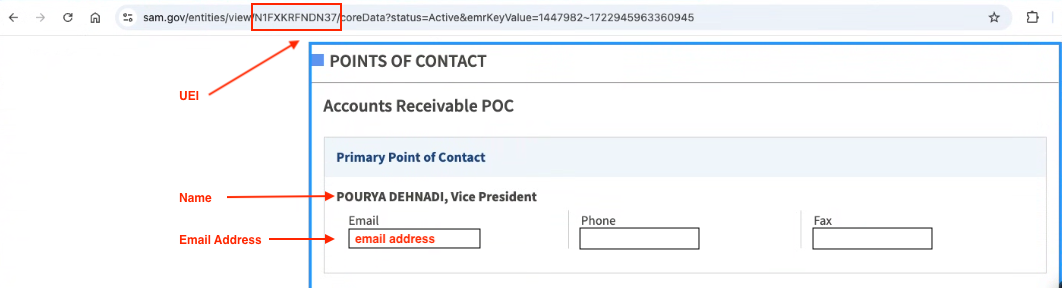
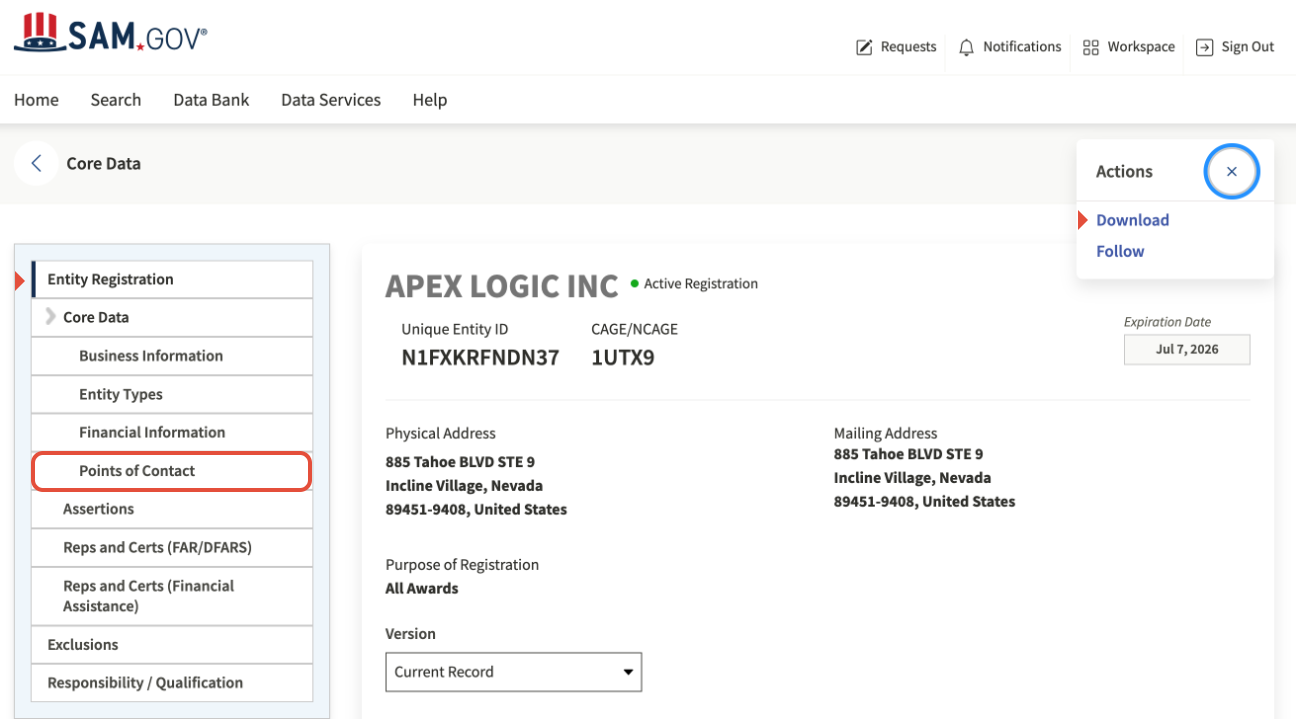
Symphony Administrators & Staff: After registering, your account status must be manually Activated to access the platform. See Complete Account Activation. To be a Symphony Administrator, you must provide documentation of your SAM.gov Points of Contact page (showing your UEI, Name, and Email) to the Help Desk to activate your account.
Table of Contents
1. Access the Vehicle Portal and Validate Your Email
2. Verify and Confirm Corporate SAM.gov Data
3. Set Up Your Password and Multi-Factor Authentication (MFA)
4. Complete Account Activation
Before You Start
- Shared Logins Are Prohibited: Do not use group or shared distribution emails (e.g., proposals@company.com or capture@company.com). Symphony's architecture is collaborative: all active accounts registered under the same corporate UEI automatically share access to the company's workspace, project repository, and active proposals. Each user must register with their own individual work email address.
- Active SAM.gov Record Required: Your company's System for Award Management (SAM.gov) registration must be active. Have your 12-character Unique Entity Identifier (UEI) and CAGE code ready.
- Prime Offeror UEI Rule: Always register under the UEI of the Prime Contractor or lead entity. Do not enter the UEI of a subcontractor or Joint Venture partner.
- Joint Ventures & Sister Entities (Confirm the Exact UEI): If your organization participates in Mentor-Protégé Joint Ventures (MP JVs) or has multiple legal entities across contract vehicles, confirm the exact UEI before having staff register. If a team member registers under the parent company's UEI instead of the JV's UEI (or vice versa), the JV Administrator will not receive a registration alert, the user will not appear on the JV's user management screen, and they cannot access the JV's proposal.
- One Account Per Company Per Portal: A single email address can only be associated with one UEI within any specific Symphony portal. If you represent multiple legal entities, you must use a separate individual email address for each company.
- Account Deletion Caution: Deleting a user account under Administration permanently blocks that email address from re-registering under that company entity. To revoke access safely without blocking an address, set the user's status to Inactive rather than deleting them.
Steps
1. Access the Vehicle Portal and Validate Your Email
- Navigate to the official Symphony web address for your targeted contract vehicle. See Portal Links and Access Requirements to verify the portal address. All portals (except Polaris) display the contract vehicle logo.
- Accept the Security Notice: Click Accept on the mandatory For Official Use Only (FOUO) / System Security and Privacy warning screen to proceed to the portal login page.
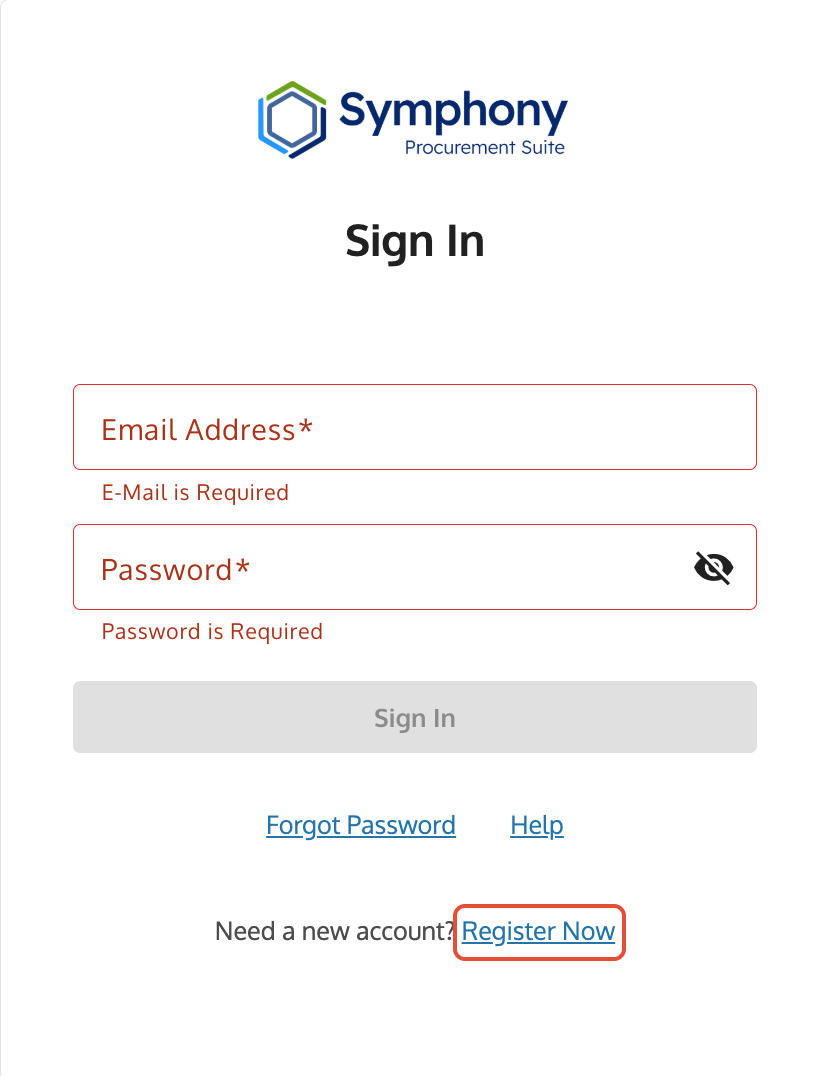
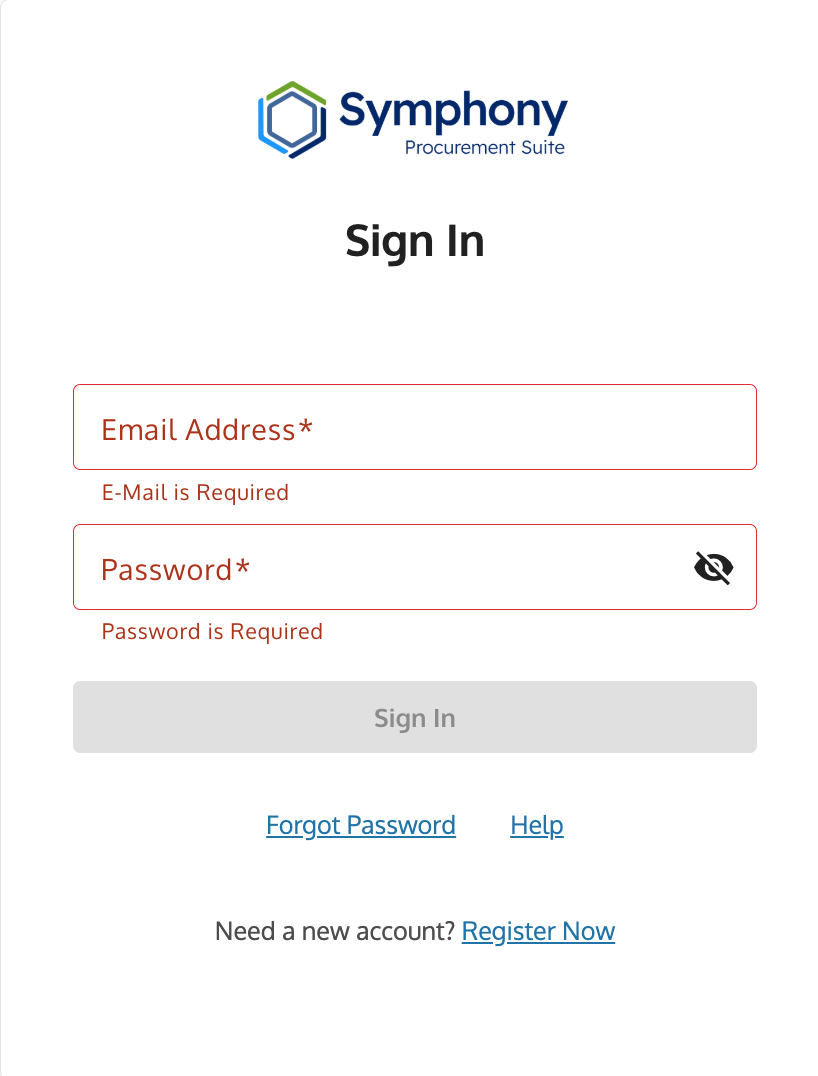
- Click the Register Now link located below the login fields.
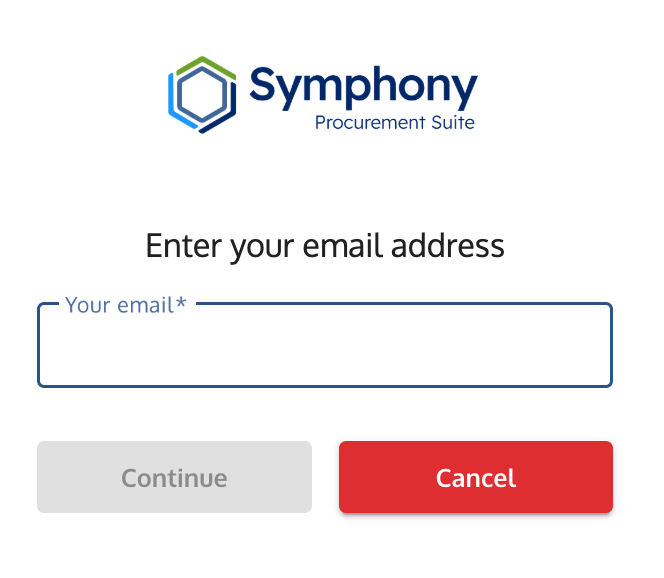
- Enter your individual corporate email address.
- Retrieve the verification code sent to your inbox, enter it into Symphony, and click Validate. (If the email does not arrive promptly, check spam and quarantine folders for messages from noreply@gsa.gov or symphony@apexlogic.com).
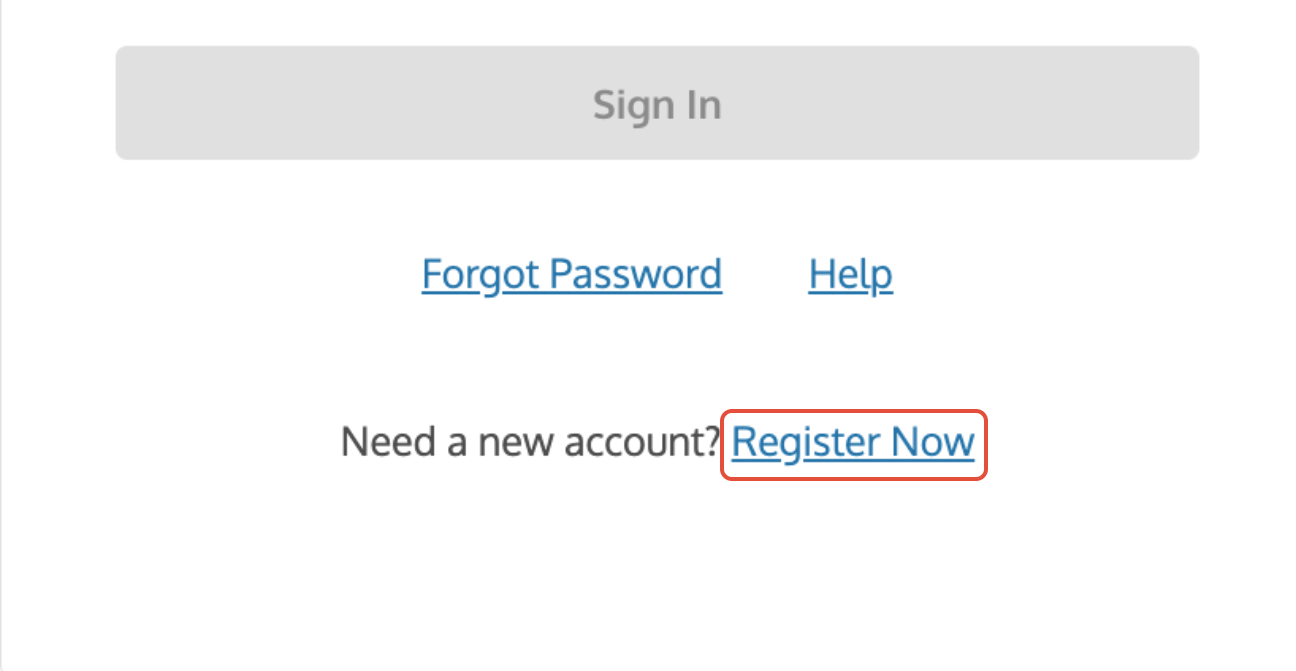
Register Now link on the Symphony login page used to start the registration process.
2. Verify and Confirm Corporate SAM.gov Data
Symphony connects to SAM.gov to validate your entity's legal standing:
Enter your organization's 12-character SAM.gov UEI.
If multiple CAGE codes are associated with your UEI, enter the specific five-character CAGE Code representing the bidding entity.
Click Lookup Organization.
Confirm that the Legal Business Name, Address, and entity profile retrieved from SAM.gov match your organization, then click Yes to proceed.
Entity Setup Rule: You must register under the Prime Contractor entity. If you enter an incorrect UEI, your account will be linked to the wrong organization and you will not have access to your company's proposals or assets.
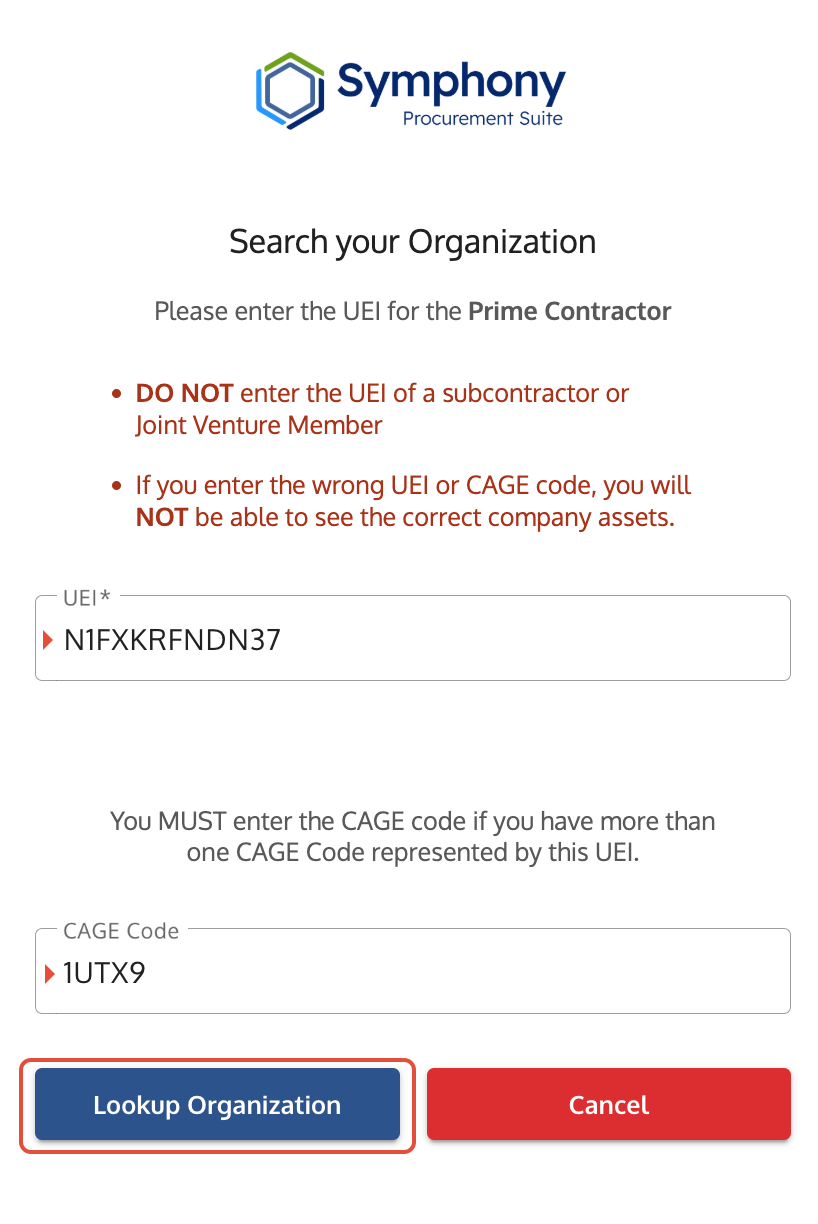
Organization Registration screen where users confirm UEI and CAGE code before proceeding.
3. Set Up Your Password and Multi-Factor Authentication (MFA)
Complete your security profile and enroll your required MFA device:
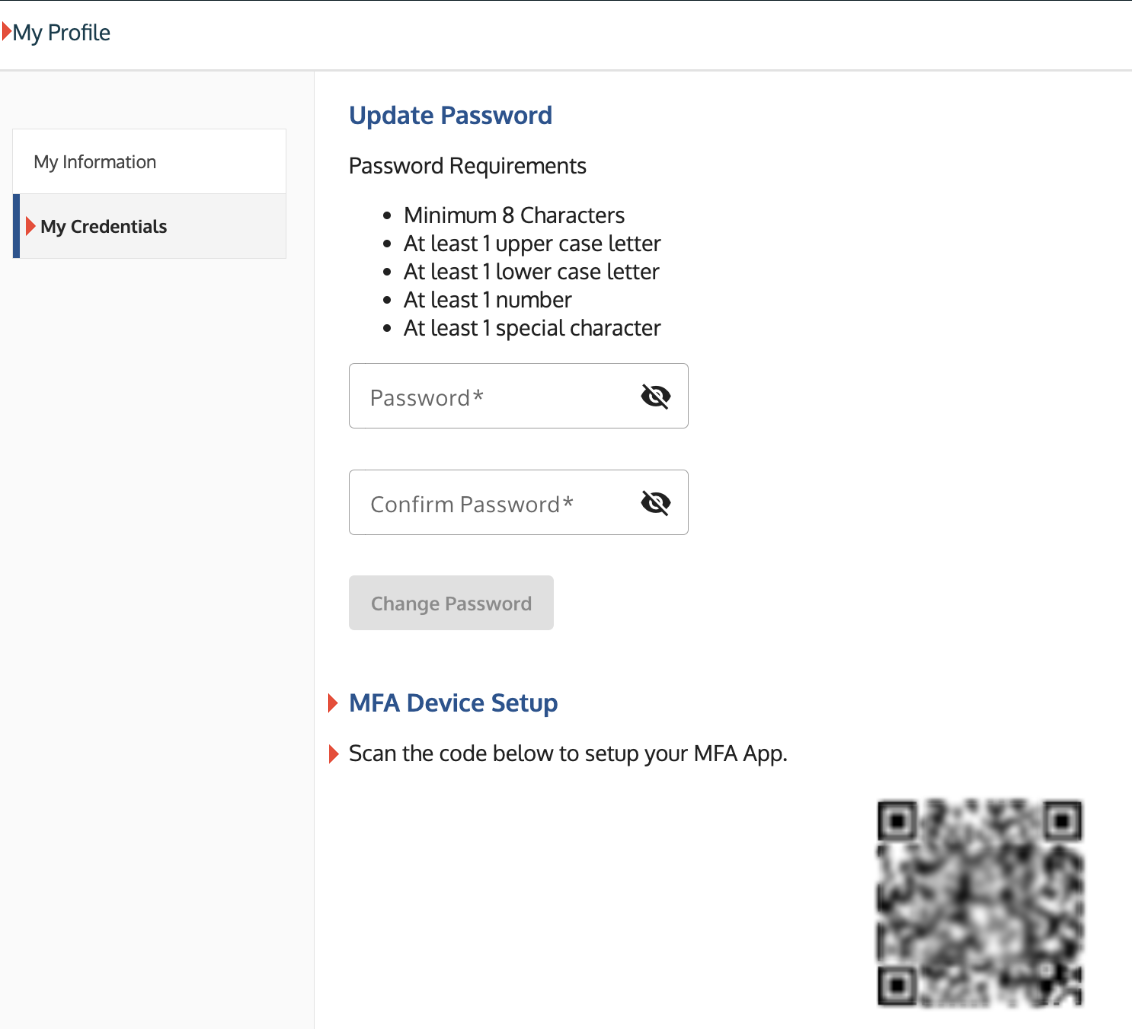
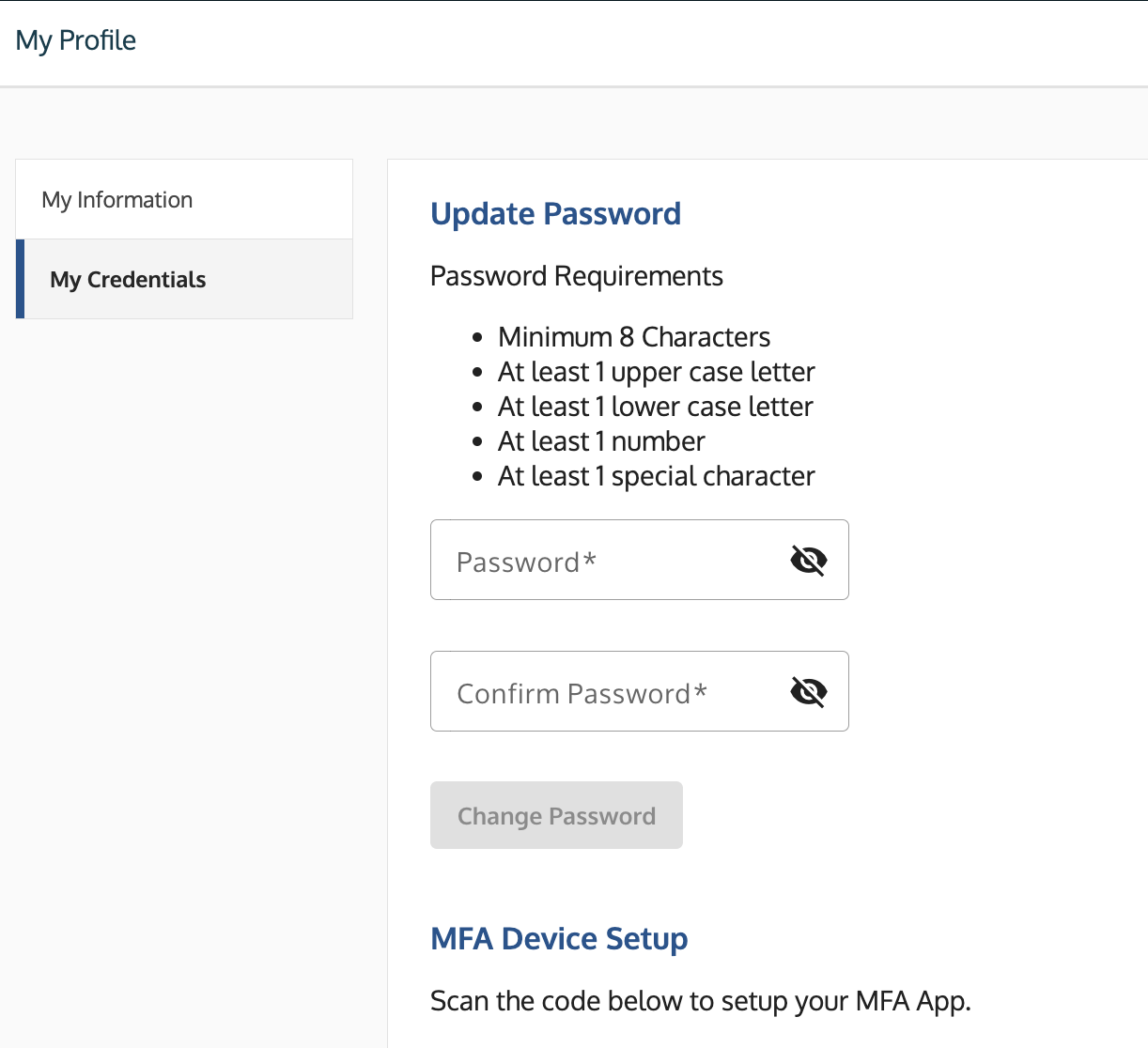
- Enter your First Name, Last Name, and create a password that complies with system complexity requirements.
- Select Multi-Factor Authentication Method:
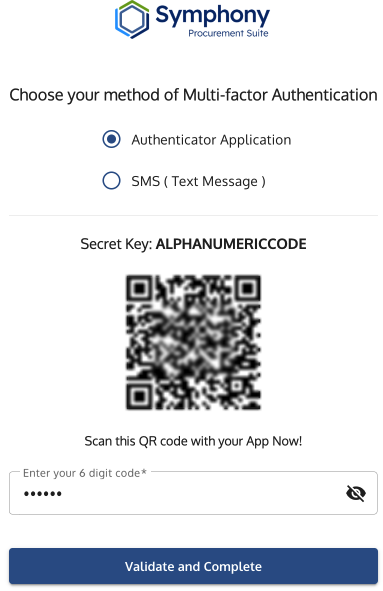
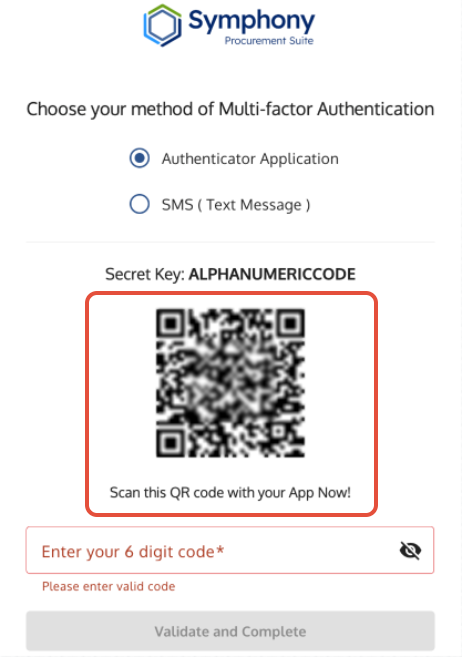
- Authenticator Application (Mandatory for GSA Vehicles): Open a mobile authenticator app (e.g., Google Authenticator, Microsoft Authenticator), scan the displayed QR code (or manually enter the Secret Key), and generate a time-based verification code.
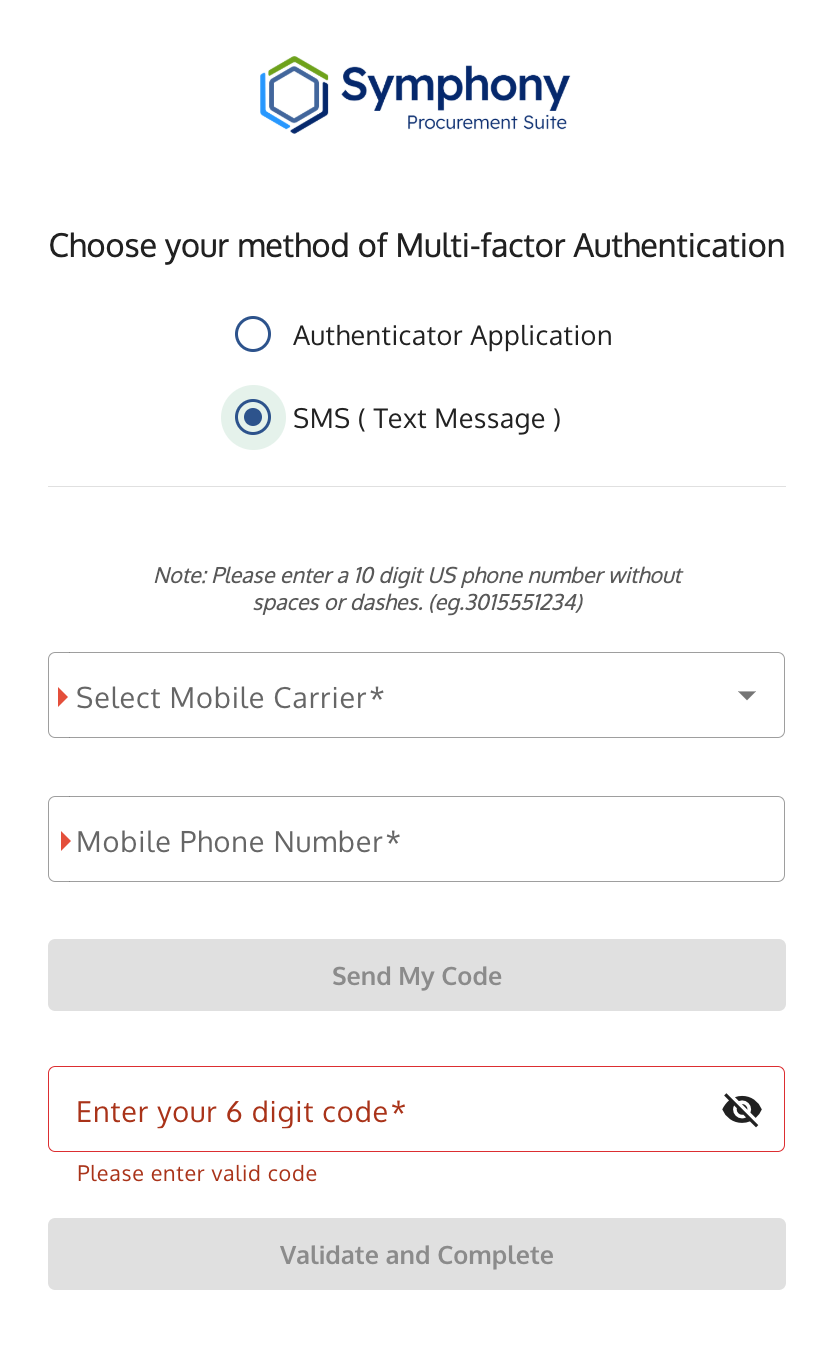
- SMS / Text Message: Available only on select non-GSA portals for domestic phone numbers. (SMS authentication for GSA portals was permanently retired on April 30, 2026).
- International / U.S. Territory Users: Must use an Authenticator App across all contract vehicles.
- Authenticator Application (Mandatory for GSA Vehicles): Open a mobile authenticator app (e.g., Google Authenticator, Microsoft Authenticator), scan the displayed QR code (or manually enter the Secret Key), and generate a time-based verification code.
- Enter the active six-digit code from your authenticator tool and click Validate and Complete.
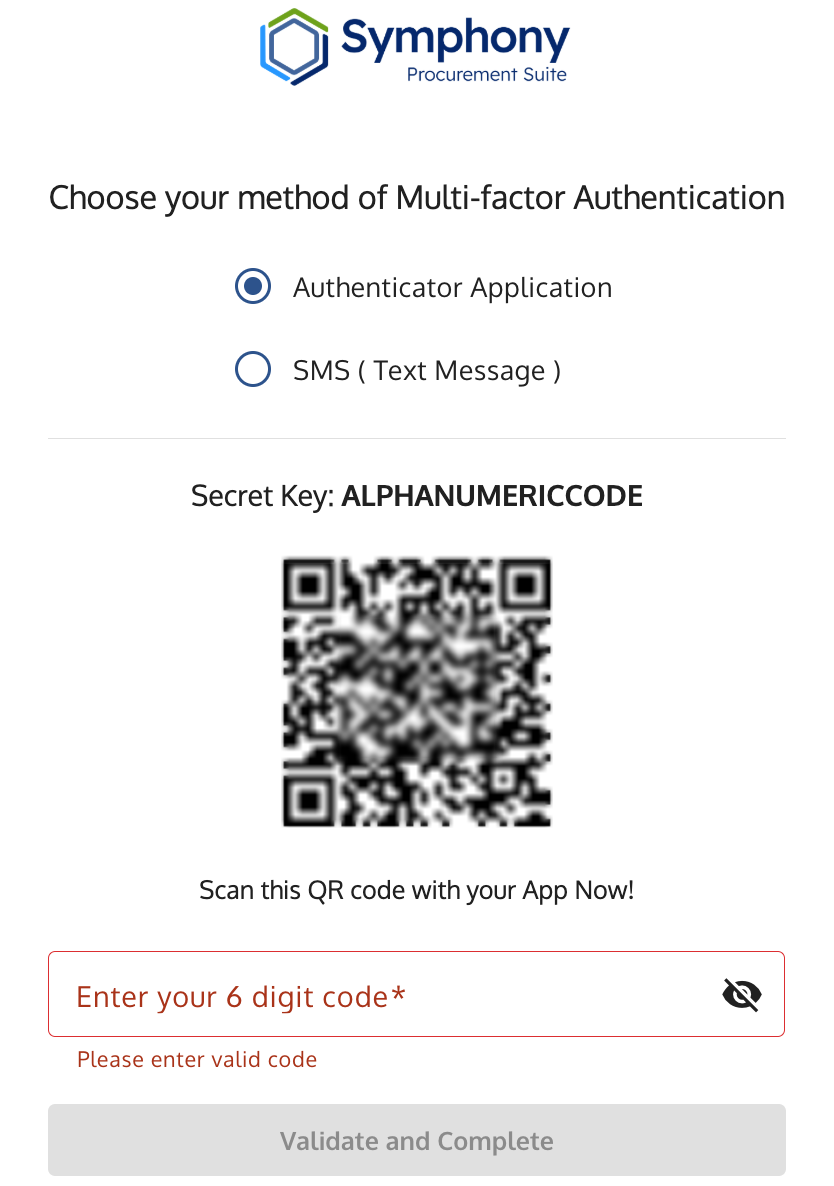
MFA Setup screen with a QR code for authenticator setup and a field to enter the six-digit code.
Tip: Rename the Token in Your Authenticator App Immediately
By default, your authenticator app will label this entry as SymphonyPS. If you access multiple Symphony portals (such as OASIS+, Polaris, or ASTRO), every token will display the exact same default name, making them difficult to tell apart.

Immediately edit the entry name in your app to include your specific contract vehicle (e.g., Symphony - OASIS+ or Symphony - Polaris).

• In Google Authenticator: Swipe right on the entry and tap the Pencil (Edit) icon to rename it.

• In Microsoft Authenticator: Tap the account tile, tap the Settings (Gear) icon in the top right, and edit the Account name.
4. Complete Account Activation
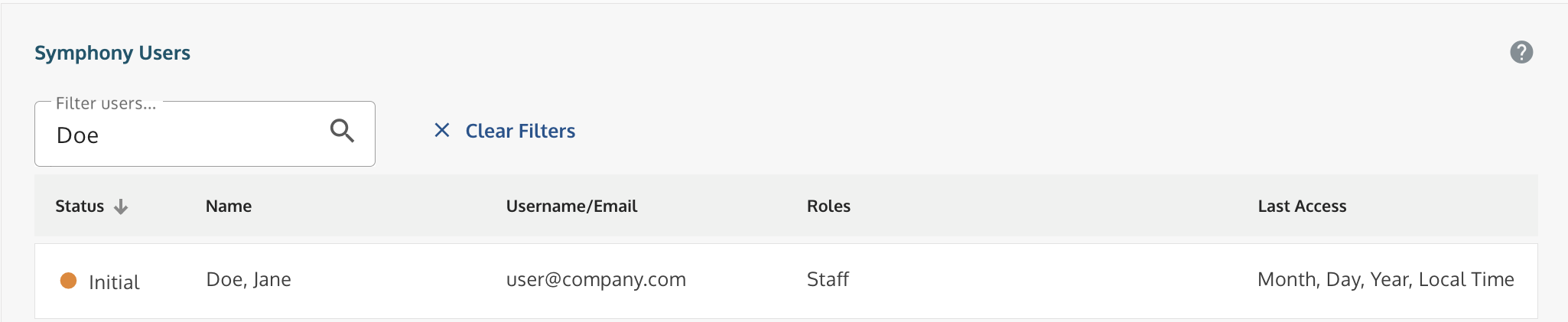
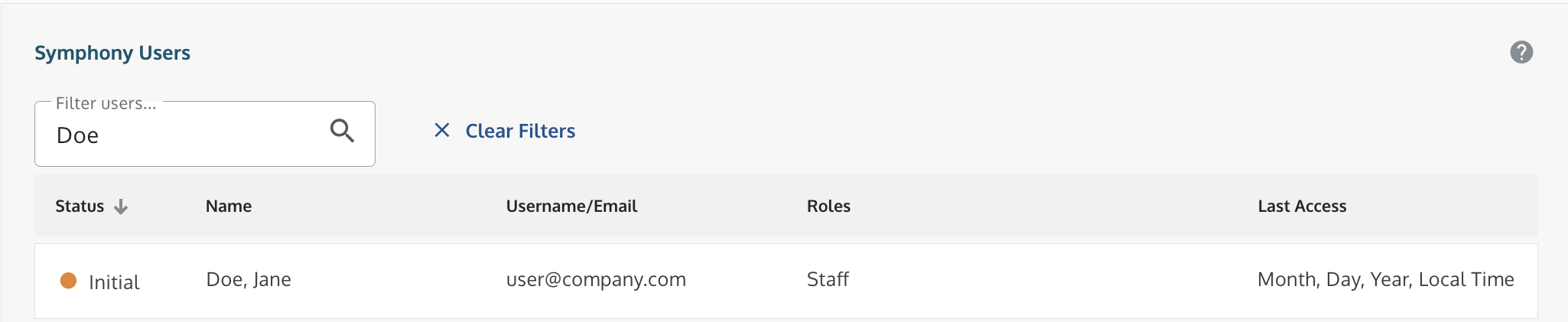
Upon completing registration, new accounts are placed in Initial status. You cannot sign in to the workspace until your account is activated.
Important Notification Rule: Symphony never pulls contact information from SAM.gov to send registration alerts or evaluation notices. System notifications are sent only if your company already has an active, registered Symphony Administrator. If you are the first user registering for your company, no automated notification will be sent to anyone; you must initiate activation yourself via Path B below.
Path A: You Are a Standard Business User (Staff)
- Action Required: Notify your internal company Symphony Administrator directly.
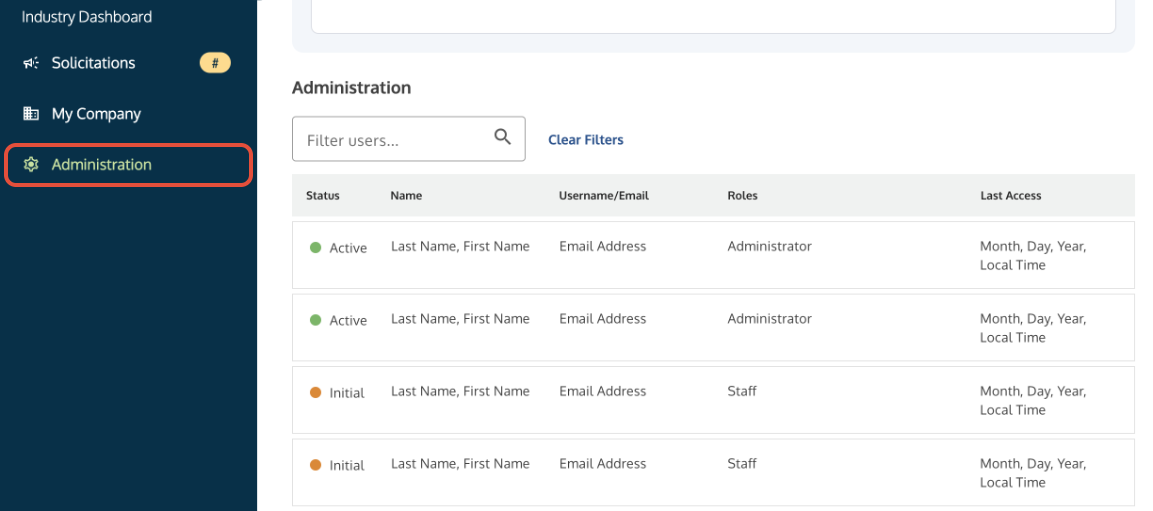
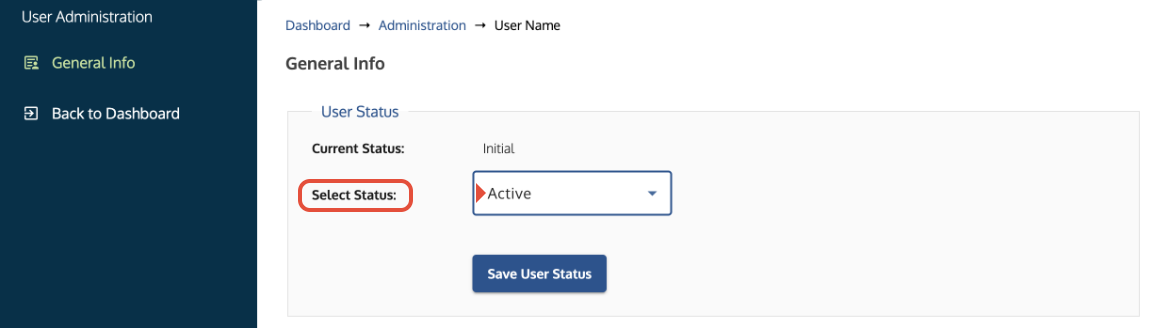
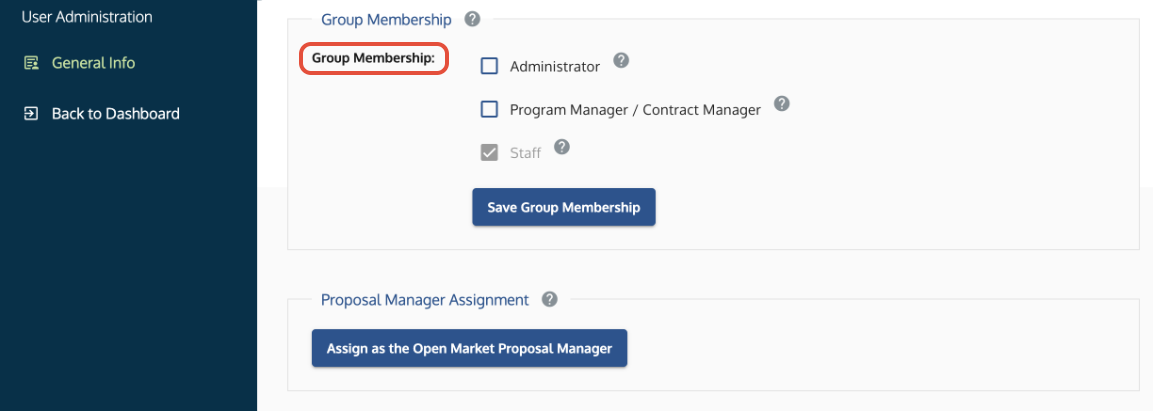
- Admin Procedure: A colleague who already has an active Administrator account must sign in, navigate to the Administration tab, locate your name, update your status from Initial to Active, and assign your appropriate group permissions (e.g., Administrator, Proposal Manager, or Staff). See Administrator Guide: Activating Users and Assigning Permissions.
Path B: You Are the First Company User / Symphony Administrator (SAM.gov POC)
If your company does not have an active registered Administrator in Symphony, you must be verified and activated by the Symphony Help Desk:
- Log in to SAM.gov, navigate to your active entity registration, and open the Points of Contact tab.
- Take a clear, unedited screenshot of the Points of Contact section.
- The screenshot MUST explicitly display all three of the following elements together:
- Company UEI
- Your Full Name (listed as an authorized POC, such as Primary, Alternate, Electronic Business, or Government POC)
- Your Email Address
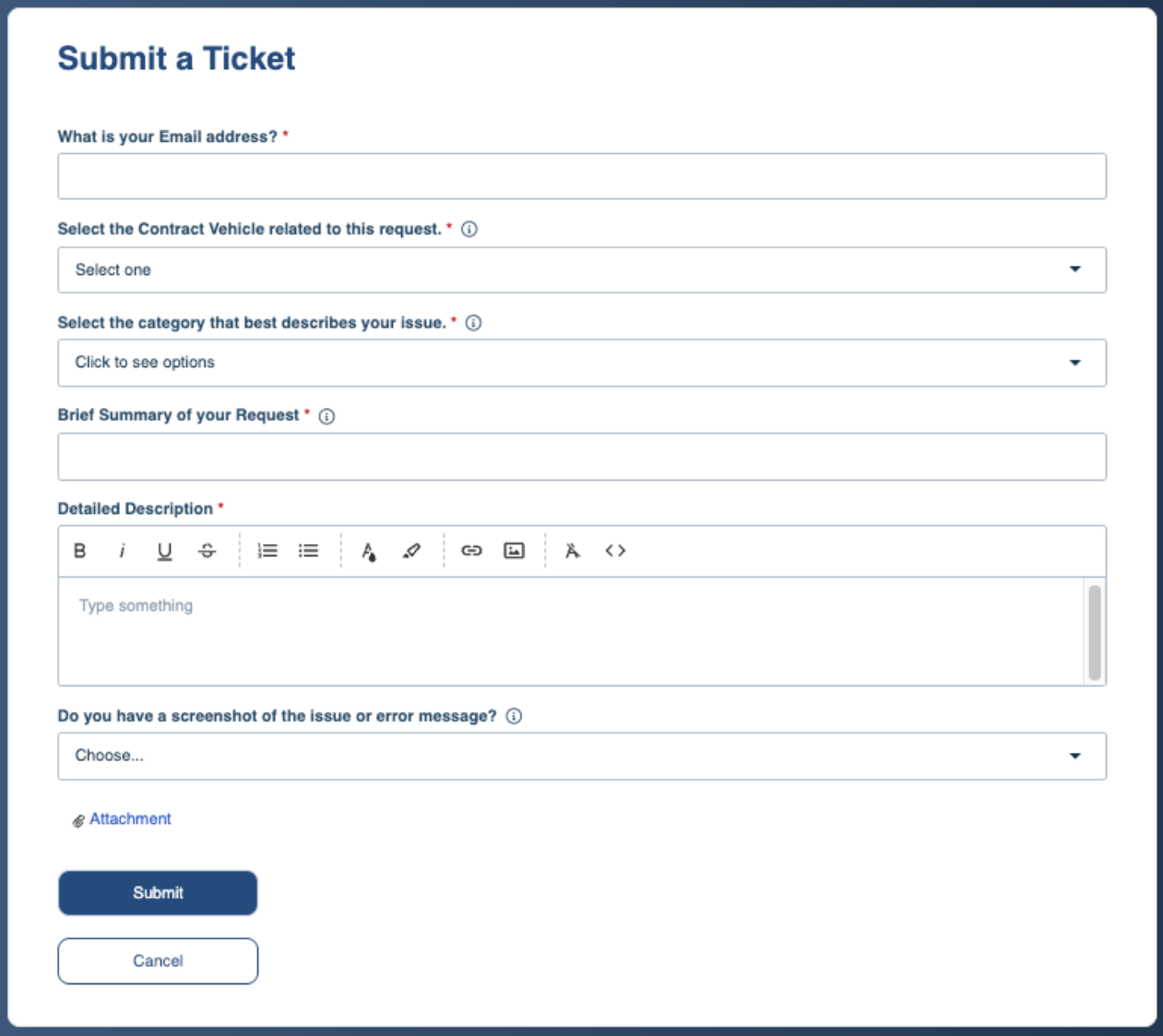
- Submit a Support Ticket with the screenshot attached to request Symphony Administrator activation.
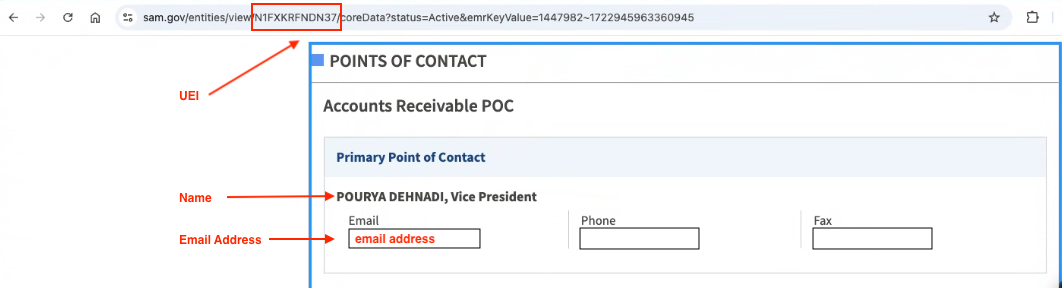 Example of the required SAM.gov verification elements.
Managing Multiple Entities or Using Alternate Email Addresses? Because Symphony links each email address to a single company UEI, users who manage multiple organizations often register using an alternate email address or email alias (e.g., first.last-corpB@company.com).

If the email address you used to register in Symphony does not match the email address displayed on your SAM.gov Points of Contact record, please clarify this in your ticket. Explain that you are an authorized POC representing multiple entities and specify which registered email address should be linked to the entity's Administrator account.
Troubleshooting
Issue | Root Cause | Fix |
| Account displays "Inactive" upon login | Account has not completed administrative activation. | Staff: Ask an internal company Administrator to set your account to Active under the Administration tab. Admins: Submit a Help Desk ticket with your SAM.gov Points of Contact screenshot. |
| Our SAM.gov POC never received an email about my registration | Symphony does not notify contacts listed on SAM.gov. | Symphony only dispatches notifications to users who have an active, registered Administrator account inside Symphony. SAM.gov POCs who have not registered in the portal receive no system communications. |
| Verification email not received | Mail server firewall or spam filtering. | Check spam/junk folders for emails from noreply@gsa.gov or symphony@apexlogic.com. Ensure automated relay notifications are whitelisted by your corporate IT. |
| "Organization Not Found" during lookup | SAM.gov record is inactive, expired, or in draft status. | Symphony can only link to entities with fully active SAM.gov registrations. Check SAM.gov to ensure renewal processing is complete and the status is active. |
| Cannot register: "Email already registered" | The email address is already tied to an entity in this portal, or was previously deleted. | An email can only link to one UEI per portal. If representing an additional entity, register using an alternate email address. If the account was previously deleted, submit a support ticket to have the Help Desk reinitialize the email address under either the previous UEI or a new UEI. |
| No one was notified of my registration | Scenario A: You are the very first person from your organization to register in Symphony, meaning there is no existing Administrator in the system to receive an alert. Scenario B: Your company already has a registered Administrator in Symphony, but they haven't logged in to check their notifications, or automated system emails are caught in their spam filter. Scenario C: User registered under a different corporate UEI than their admin. | A: If you are your company's first user: Symphony has no internal admin to notify yet. Follow Path B and submit a Help Desk ticket with your SAM.gov POC verification screenshot. B: If your company already has an active Admin: Ask your colleague to sign in, go to the Administration tab, and activate your account. C: If your company already has an active Admin: Verify that both the user and the Admin are registered under the exact same UEI and URL. Symphony cannot route registration alerts across different UEIs or portals. |
| Registered under the wrong company UEI | Incorrect UEI and CAGE code entered during registration. | Submit a support ticket providing your email, the incorrect UEI, and the correct UEI/CAGE code to have the profile re-associated or revoked. |
| Admin cannot find new user under the Administration tab | User registered under a different UEI (e.g., parent company vs. Joint Venture entity) or URL. | Verify the UEI and URL: Check which URL and entity UEI the user submitted during registration. If your company operates multiple entities or JVs, the user must register under the exact UEI the Admin manages. If registered under the wrong entity, submit a support ticket to have the profile reassociated with the correct UEI. |
Related Articles / Links
- Symphony Sign-In Guide: Credentials, Password Resets, and Account Activation—Guide on the activation process
- MFA Setup & Security Guide: Authenticator Apps and Access Codes
- Administrator Guide: Activating Users and Assigning Permissions—Guide for Administrators on user management
- SAM.gov Data in Symphony: Access Requirements and Refreshing Entity Data—Guide on verifying your UEI/CAGE data and POCs at SAM.gov
- Portal Links and Access Requirements
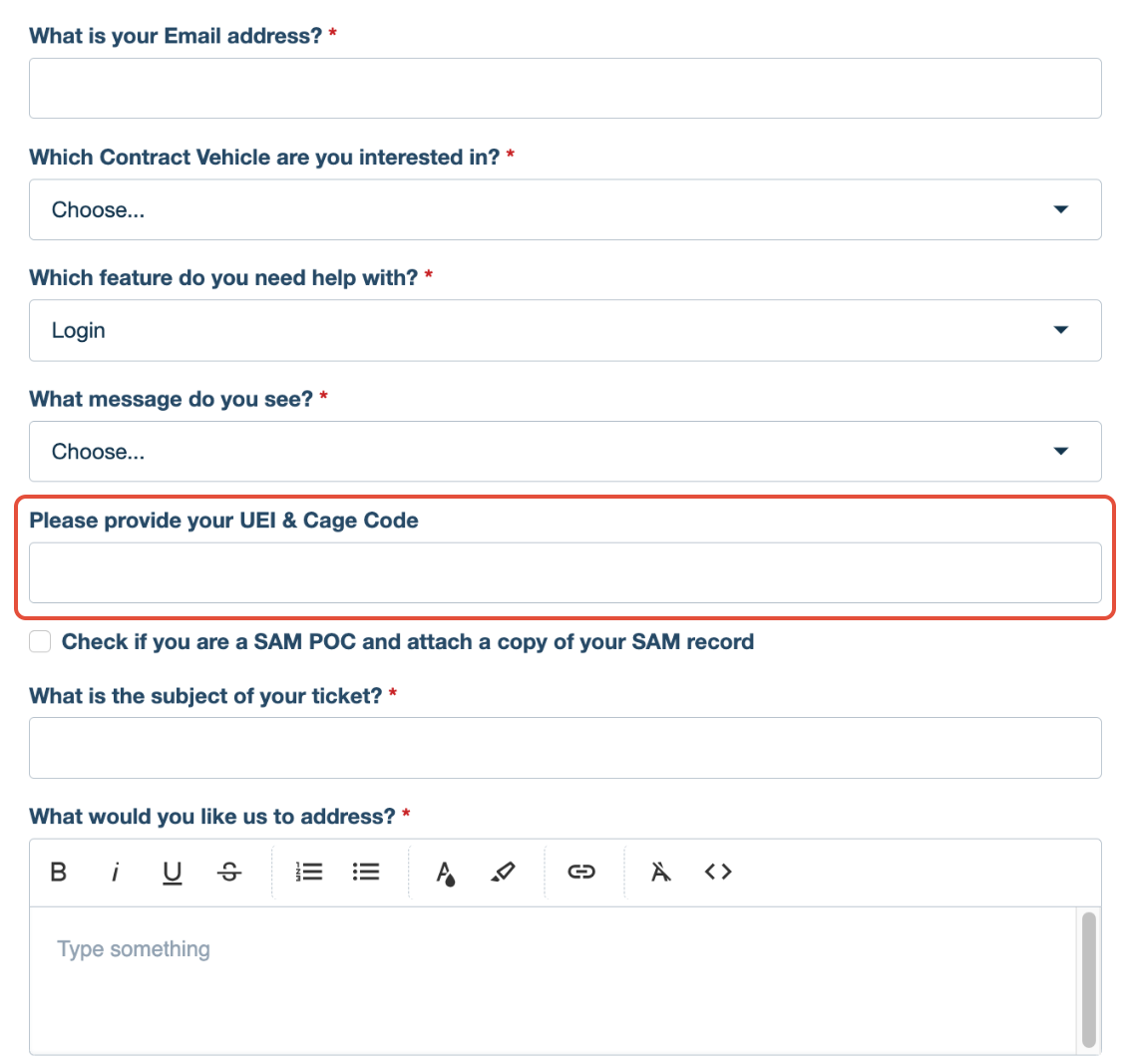
- Submit a Ticket to the Symphony Help Desk—For technical account issues



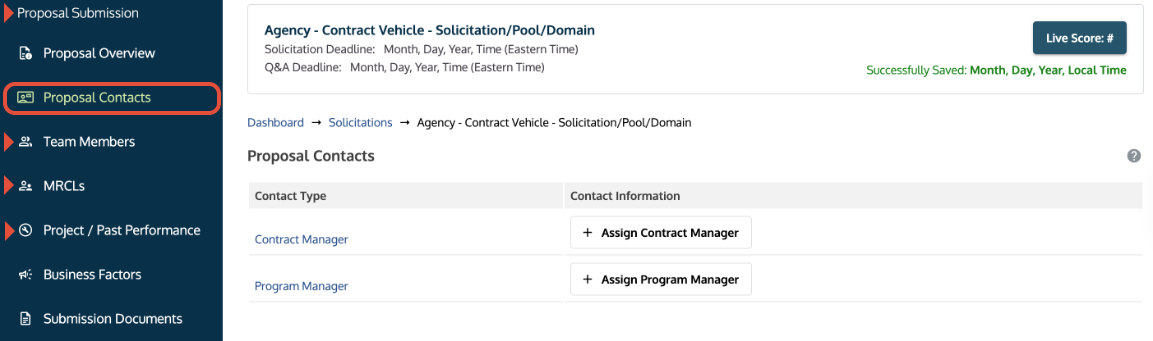
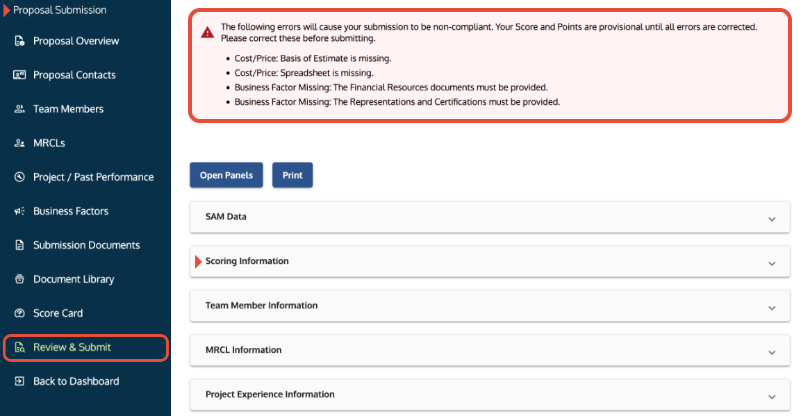
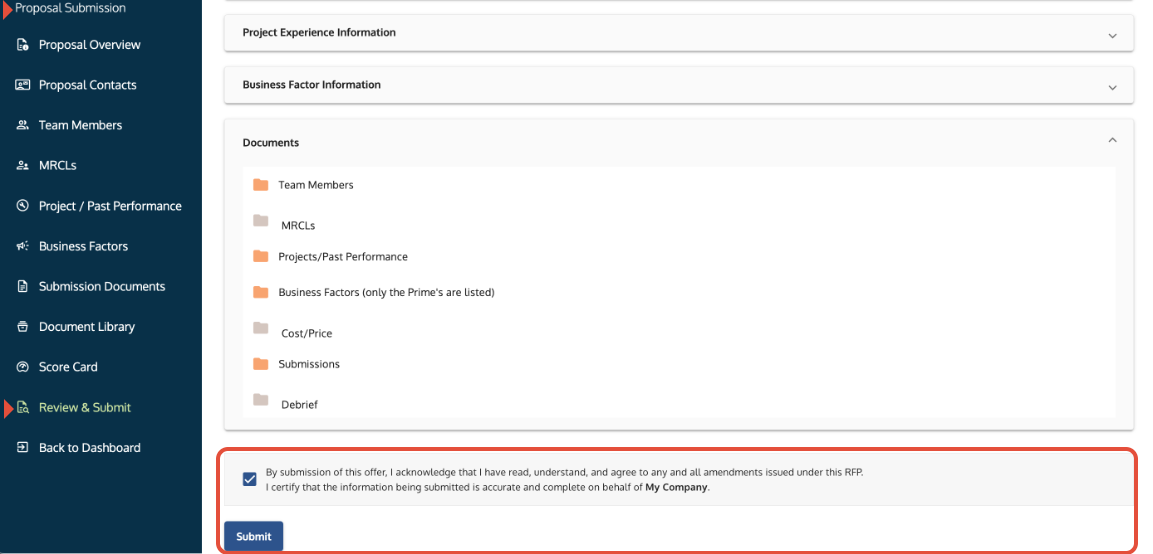

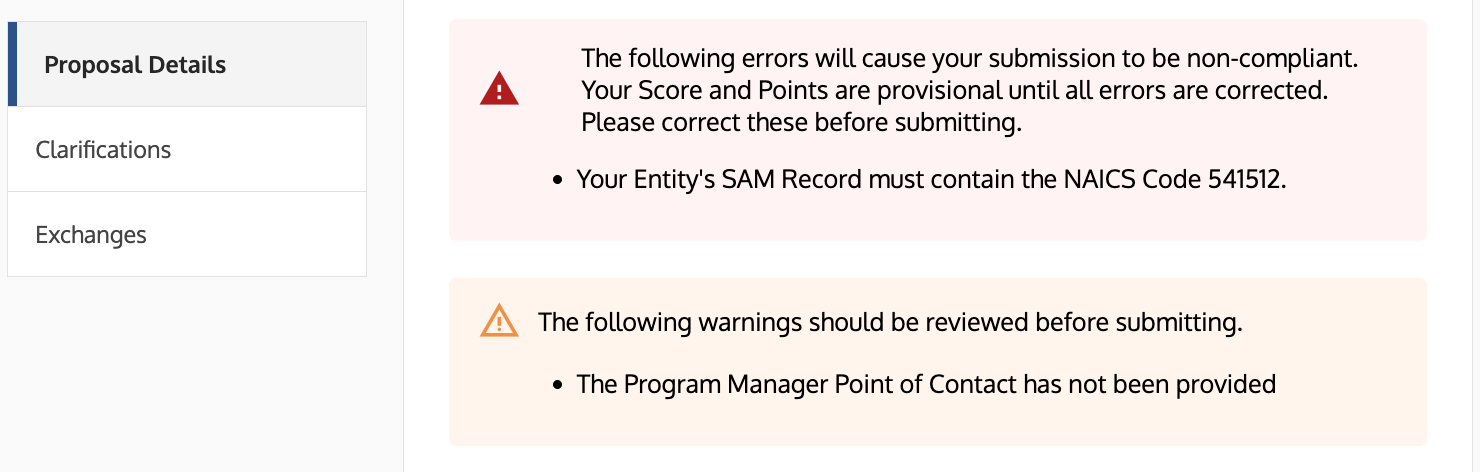
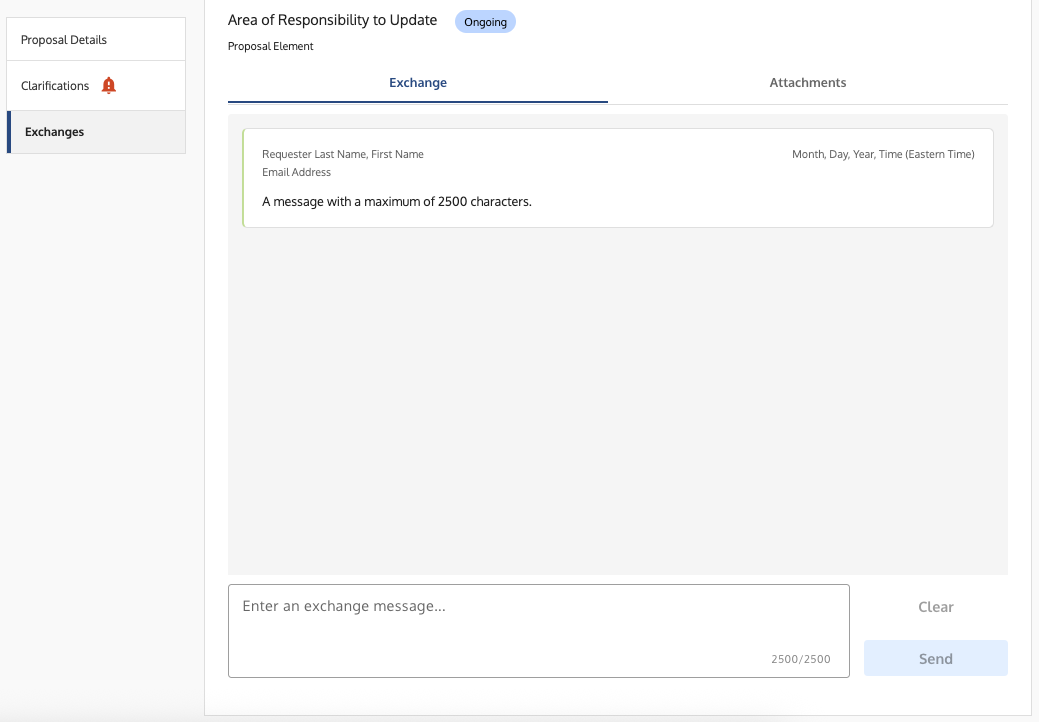
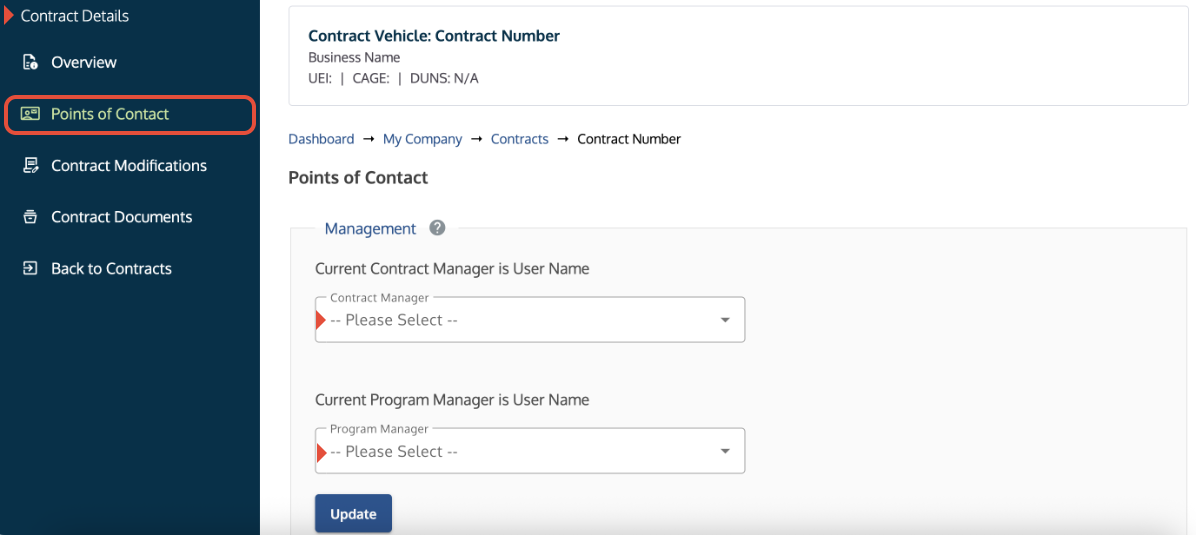
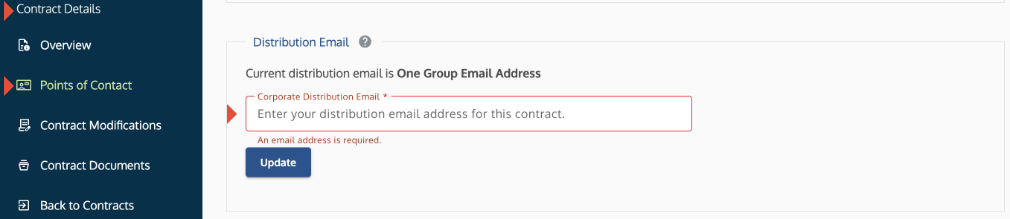
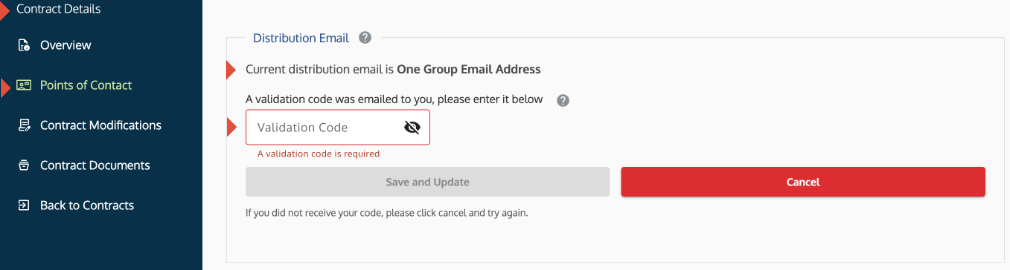
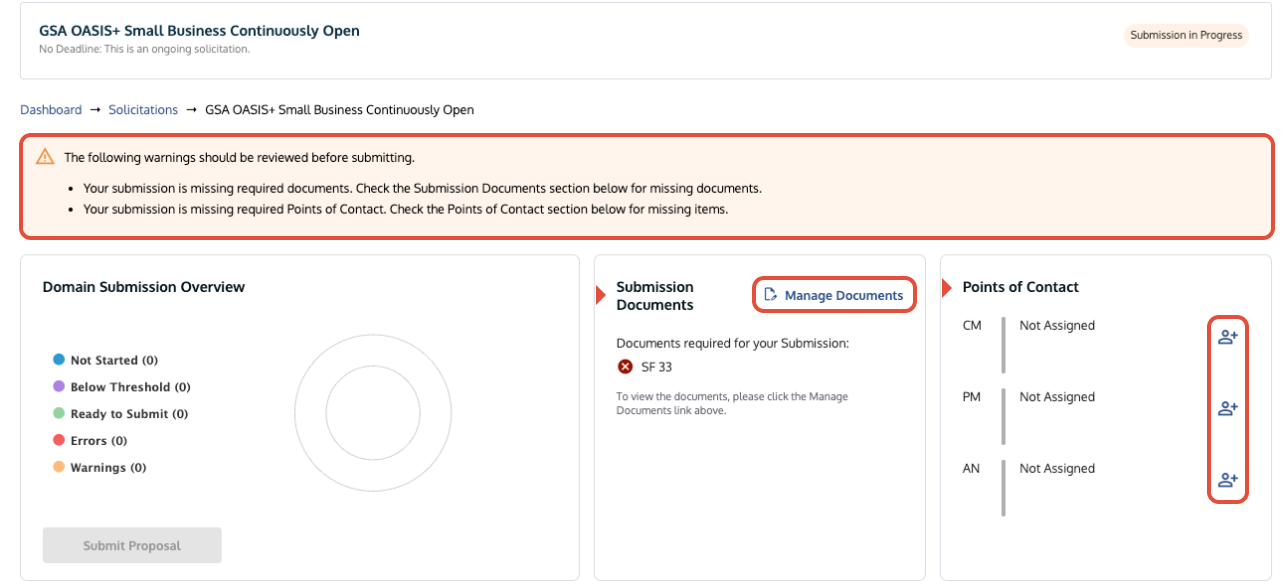
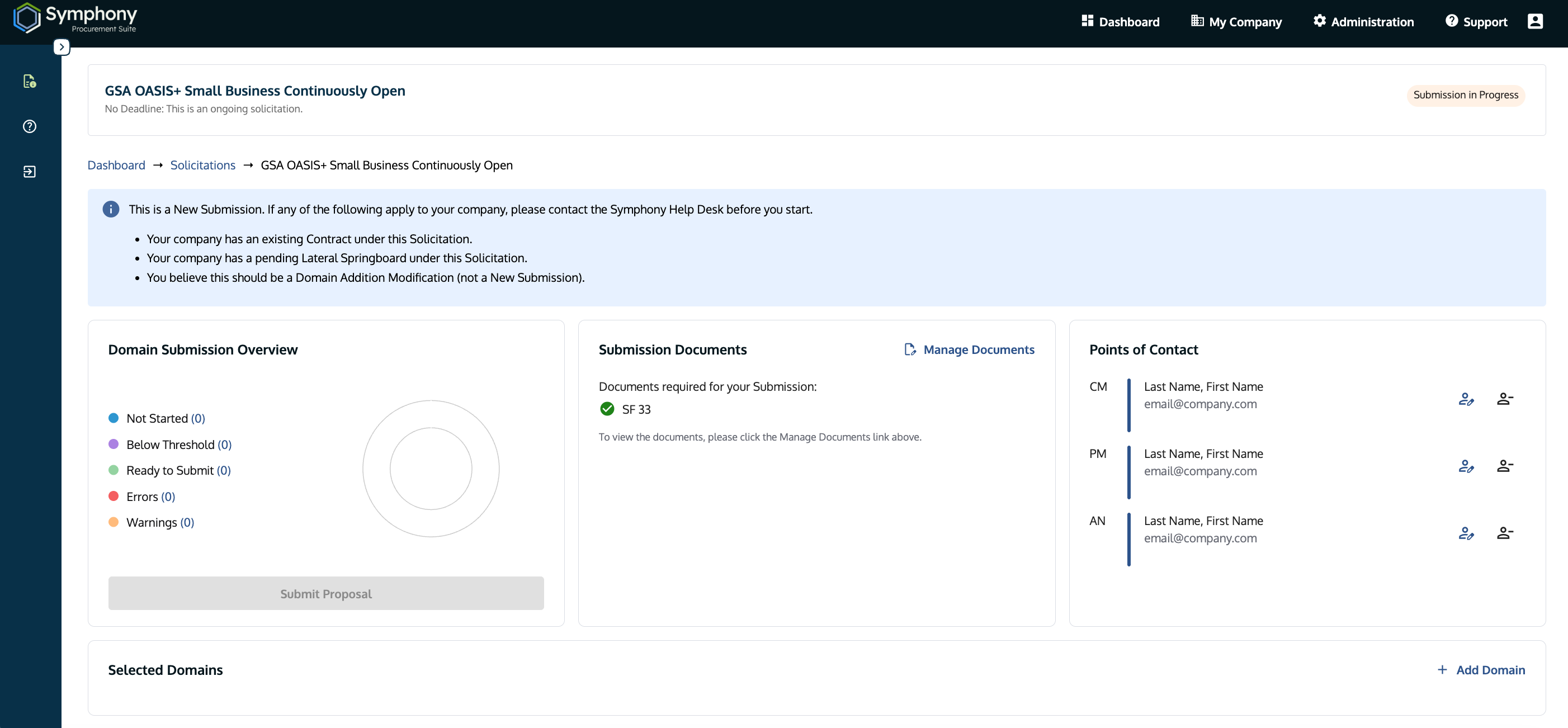
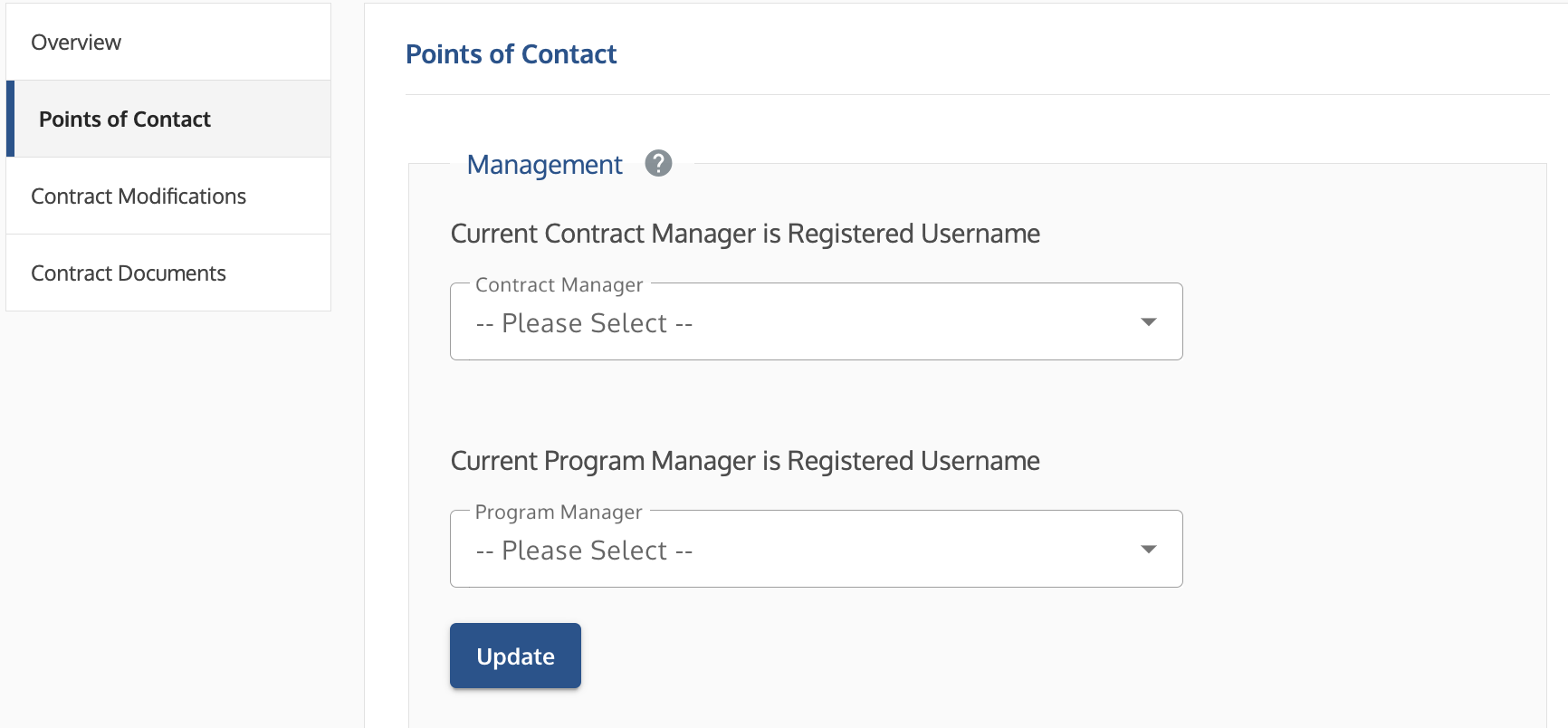
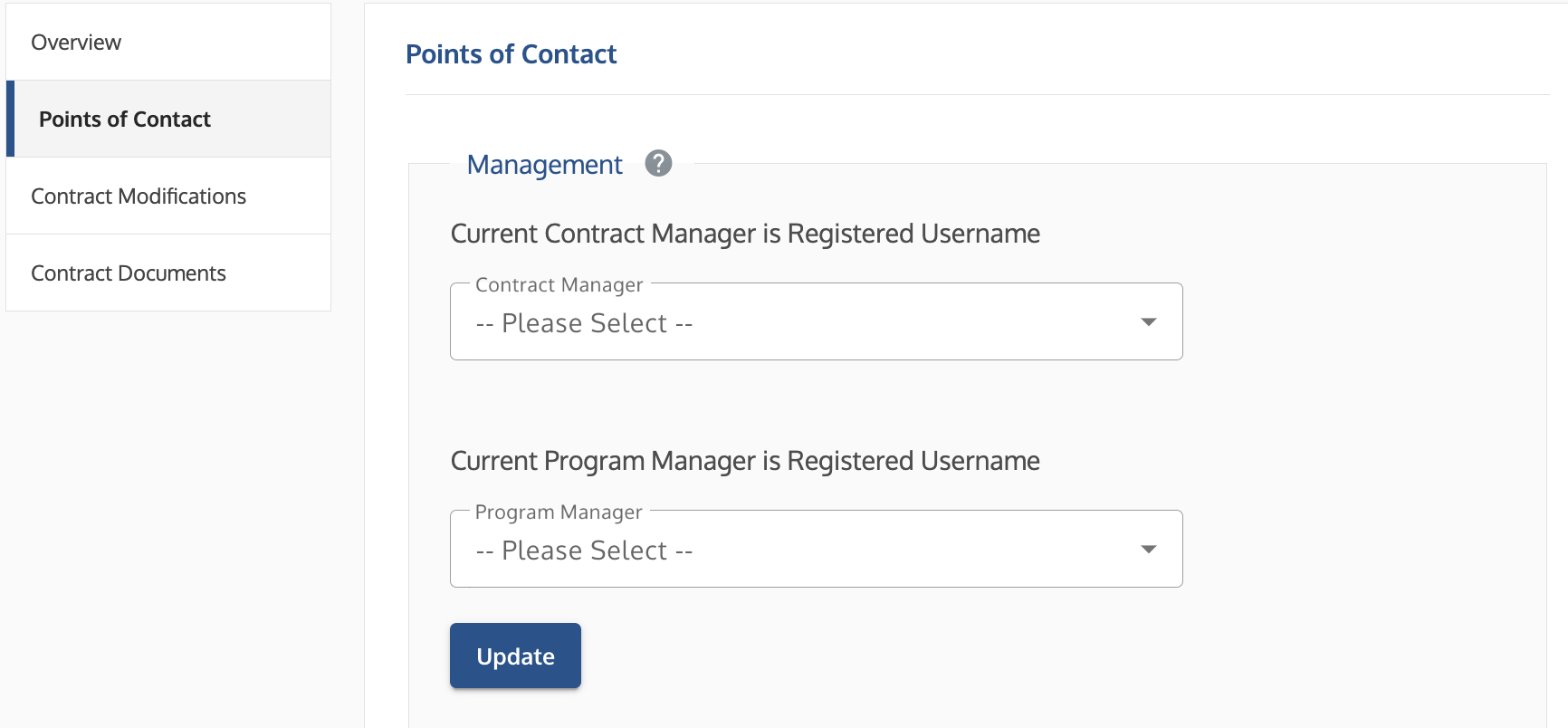 Points of Contact screen showing dropdown menus for assigning Contract Manager and Program Manager roles.
 Contract Modifications tab showing the option to start a modification.